




This guide will show how to delete a Google Review: 8 Easy Steps – A Simple Guide to Edit, Add, or Delete Google Maps Reviews & Ratings. You’ll learn how to delete old reviews, edit your feedback, and reply to comments with just a few steps.
You can also flag inappropriate or fake reviews to keep the community helpful. If you own a business, managing reviews well can improve your online reputation. Let’s get started and see how you can take control of your Google Maps reviews.
Negative Google reviews can seriously affect your business. They shape how potential customers see you, hurt your reputation, and may lower your visibility in local search results.
Because of this, it’s important to have good strategies for handling negative feedback.
Some negative reviews can hurt, but they can also offer chances to improve.
If you handle criticism well, it can boost your credibility, highlight areas for improvement, and benefit your business in the long run.
8 Steps to Delete a Google Review
Taking care of your online reputation starts with quickly spotting any negative reviews.
After you find these reviews, it’s important to respond to them and remove them if needed to protect your online image.
If you ignore negative reviews, problems can get worse. That’s why it’s important to stay on top of your Google reviews.
Luckily, you have a few ways to remove reviews that break Google’s rules or lessen the effect of unfair comments.
Here’s a simple guide to help you through the process:
Delete Your Own Reviews (Optional):
If you’ve ever left a negative review about your own business, maybe out of frustration, you can usually delete it.
Think carefully before doing this, as it’s important to keep your reviews honest.
Utilize an Online Reputation Management Company:
If this feels overwhelming, consider hiring an online reputation management (ORM) company.
These experts focus on managing your online image and can help you remove negative reviews, though they charge a fee.
They know Google’s rules well and can speak up for you.
Reach Out to the Review Author:
If possible, try reaching out to the person who left the negative review.
Be open and willing to clear up any misunderstandings.
After you’ve addressed their concerns, politely ask if they’d consider changing or removing their review.
Taking this personal approach can sometimes turn an unhappy customer into a satisfied one.
Flag Fake or Inappropriate Reviews:
If you find reviews that are misleading, harmful, or break Google’s rules, report them right away.
Google lets you flag content like hate speech, harassment, threats, or obscene language.
Reporting these problems helps keep reviews on the platform fair and useful.
Encourage More Positive Reviews:
Encourage happy customers to leave honest, positive reviews.
Motivate your happy clients to post their experiences online. It can help counteract negative reviews and boost your overall rating.
When you connect with your customers and listen to them, you build loyalty and get more positive feedback.
How to Delete a Google Review: 8 Easy Steps – A Simple Guide to Add, Edit, or Delete Google Maps Reviews & Ratings
How to Delete a Google Review: This guide explains how you can remove a review you posted on Google, step by step.
Remove Google Maps Review: Follow these steps to delete a review you wrote on Google Maps and take charge of your online profile.
Step-by-Step Guide to Deleting My Google Review: This simple tutorial shows you exactly how to remove your own review from Google.
Flagging Inappropriate Google Reviews: Find out how to report reviews that break Google’s rules, so misleading or harmful comments can be handled.
Reporting Fake Google Reviews: This guide explains how to report reviews that seem fake or misleading, helping keep online reviews trustworthy.
Editing Your Google Maps Review: Learn how to update your review to better reflect your experience.
Business Owner’s Guide to Removing Google Reviews: This resource helps business owners address and, if necessary, remove unfair or false reviews about their business.
Google Review Removal Guide: This guide covers how to remove or manage your Google reviews.
Responding to Negative Google Reviews: Get tips and best practices for replying to negative feedback from customers on Google.
Online Reputation Management on Google: Learn how to monitor and improve your reputation using Google reviews and listings.
Appealing a Google Review Decision: Find out how to appeal if Google removes or censors your review.
Understanding Google Review Policy Violations: Learn what counts as breaking Google’s review rules and what can happen if you do.
Managing Google Business Reviews: Get tips for businesses on handling and replying to Google reviews to build a positive brand image.
Deleting a Review on the Google Maps App: Follow these steps to remove your review directly from the Google Maps application on your mobile device.
Customer Review Management Strategies: Learn the best ways to handle customer reviews across platforms, making the most of positive feedback and addressing negative comments constructively.
8 Detailed Steps to Delete a Google Review
Launching Google Maps or Accessing the Google Website: An In-Depth Guide
To begin, open Google Maps or go to the official Google website.
Locate the Google Maps application on your device and select it to begin exploring intriguing destinations. Enjoy your journey!
If you’re using a computer, open your web browser, type “www.google.com” into the address bar, and press Enter to access the Google homepage quickly. This provides an efficient way to start your search.
Make sure you are signed in to the Google account that posted the review you want to delete.
To make sure you’re logged in, look for your profile picture or initials in the top-right corner—it’s a quick and easy way to check!
If you see your icon, you’re already logged in. If not, enter your login details.
Click the “Sign in” button, usually found in the top right corner of the page or app.
You’ll be asked to enter the email address linked to your Google account.
After you enter your email, click “Next” and type in your password. Once you’re logged in, you can manage and delete your reviews.
Double-check that you’re signed in to the right account, since reviews are tied to the account that posted them.
The Simpler Parts of Deleting a Google Review
Some Google reviews are easier to remove than others.
For example, reviews that disclose a conflict of interest, such as those from competitors or unhappy former employees, break Google’s rules and can be flagged for removal.
These kinds of reviews usually violate the rules of honesty and fairness.
Google also regularly removes reviews that break its content guidelines.
If you flag hate speech, threats, or obscene language, Google can usually remove them.
If you run a Google Business Profile, use the built-in tools to watch and report reviews. You can also track their status and appeal if needed.
Google also uses automated systems to spot low-quality or suspicious reviews so that some bad content may be removed automatically.
If this process feels too much, you can hire a trusted ORM company to help.
They can handle the entire process for you, leveraging their experience to remove or reduce negative content.
Just give them the details and pay the fee, and they’ll take care of everything for you.
Go to Your Profile
To open your profile, launch Google Maps or go to the Google website in your browser.
When the page loads, look in the top-right corner. You’ll see your profile picture if you’ve added one, or your first initial if you haven’t.
Click your profile picture or initial to open a drop-down menu.
This menu gives you options to manage your account, view your information, and adjust privacy or security settings.
Feel free to explore the menu to get familiar with your account options.
The Challenging Aspects of Deleting a Google Review
Because it can be complicated, removing Google reviews is often tough for business owners.
Google wants to keep feedback real and fair, so business owners can’t delete their own reviews.
Instead, Google’s team or automated systems decide what reviews stay or go, based on their rules.
It can be confusing to dispute a review’s accuracy. Even if you know a review is false, it’s often hard for others to prove it.
Also, reviews from other websites via Google’s “Reviews from the web” feature can’t be removed by Google. You’ll need to contact the original site to deal with those.
Getting rid of just one review can take a lot of time and effort, which is tough for busy business owners.
If you’re short on time or resources, hiring a reliable ORM company can be a faster, more effective solution.
With all this in mind, let’s look at the steps you can take to manage and respond to Google reviews so your business can succeed, even with some negative feedback.
Go to Your Contributions
To find your Contributions, open the drop-down menu from your account.
Look for the option called “Your Contributions” in the menu.
This section serves as a comprehensive hub where you can view all your personal activities across Google services.
After clicking “Your Contributions,” you’ll see an overview of everything you’ve added to Google.
This includes your reviews, photos you’ve shared, and any edits you’ve made to business listings.
Here, you can browse your contributions, see your activity, and check how you’ve helped the community.
Click “Your Contributions” to see more details about your Google activity.
Delete Your Own Review
If you’ve left a review on a Google Business Profile and want to delete or change it, the process is quick and easy.
No matter your reason—maybe your opinion changed or your experience was different—you can do this in just a few minutes.
Deleting the Review
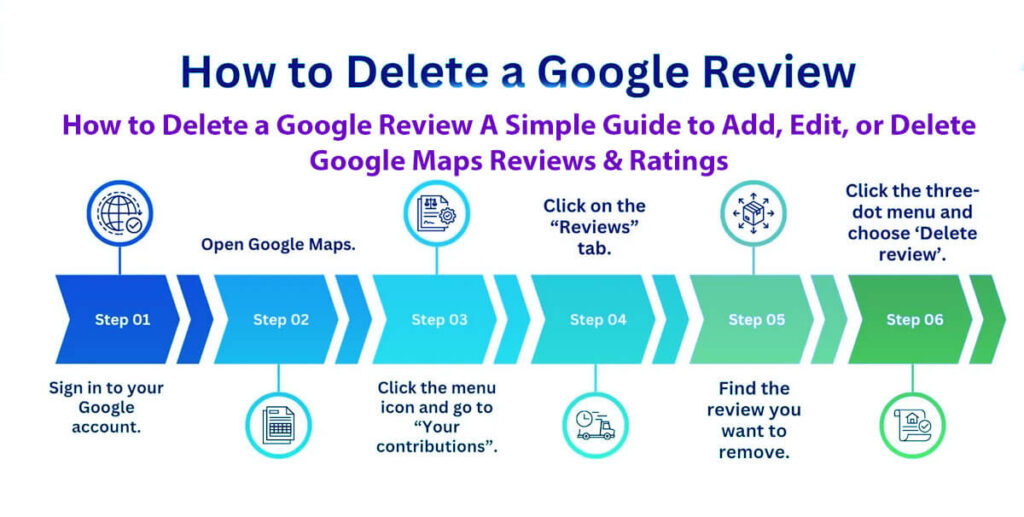
To remove a review you posted about a business, follow these steps:
Open Google Maps on Your Computer:
Open your web browser and go to Google Maps. Make sure you’re signed in to the Google account you used to write the review.
Locate the Menu:
Look for the menu icon in the top left corner and click it to open the menu.
Select Your Contributions:
From the menu, select “Your contributions.” This page shows everything you’ve added to Google Maps.
Access Your Reviews:
On that page, click the “Reviews” tab to see all the reviews you’ve written.
Find the Review to Delete:
Find the review you want to delete. Next to it, click the three vertical dots (the More option) to open a menu.
Delete the Review
In the menu, choose “Delete review.” If a confirmation message pops up, confirm that you want to delete it.
Knowing how to delete your own reviews can also help business owners.
For example, if you’ve solved a customer’s problem, you might ask them to delete or update their review once the issue is resolved.
If you’ve replied to a review on your Business Profile, you can also delete your response.
To do this, go back to the review where you left your comment and choose the option to remove your reply.
Find Your Reviews
How to Find Your Reviews
To see your reviews, go to the Contributions section.
You’ll see several tabs here. Click the one labeled “Reviews.”
This tab shows a list of all the reviews you’ve written for different businesses and places.
This list is organized for easy browsing, allowing you to efficiently find any specific review you wish to modify or delete.
Each review entry typically includes details such as the business name, the date it was submitted, and any ratings you provided.
With all your reviews gathered in one convenient location, managing them becomes a simple task, streamlining your ability to reflect on your past experiences and make necessary adjustments.
Editing the Review
If things have changed, like if the business fixed a problem you had, you should update your review instead of deleting it.
To edit your review, follow the same steps as before, but click “Edit review” instead of “Delete review.” You can then change your review to match your latest experience.
For business owners, it’s smart to politely ask customers to update their reviews after you’ve solved a problem.
Many customers are happy to do this, especially if things ended well. Some will update their feedback on their own, but a friendly request with clear instructions can increase the likelihood.
Choose the Review to Delete
Scroll through your list of reviews to find the one you want to delete.
Once you find the review you want to remove, tap or click it.
Opens a detailed view showing your review text, star rating, and any other details you added.
Make sure to double-check that this is the review you want to delete before proceeding.
Requesting the Author to Delete the Review
Often, customers are open to changing or removing a negative review if you reach out respectfully, especially after they’ve had time to cool off or after they’ve seen your efforts to fix the problem.
While it doesn’t always work, this approach is easy and can lead to good results.
Select the Delete Option
When you’re viewing your review, look for the delete option.
This option is often depicted by an icon resembling a trash can, which is commonly used to indicate removal actions.
Sometimes, the option is labeled “Delete.” Click the icon or link to start removing your review.
You may be prompted with a confirmation dialog or additional steps to verify that you indeed wish to proceed with the deletion.
Read any messages that pop up so you understand what deleting your review means before you finish.
Replying to the Review
When dealing with negative feedback, starting a private conversation without context can backfire. It’s better to start by publicly acknowledging the issue in your response.
Shows you’re paying attention and lets other customers see that you care about fixing problems.
Read the review carefully so you can address the customer’s exact concern. Keep your public reply short, understanding, and professional.
If your business made a mistake, own up to it. Offer a clear solution, like a refund, a replacement, or another chance for the customer to use your services.
Make an effort to reply to reviews within 24 hours whenever possible.
Responding quickly shows you care about customer satisfaction and makes it more likely the reviewer will rethink their feedback while it’s still fresh.
Here’s how to reply to a review on Google Maps:
Open Google Maps on Your Computer:
Open your web browser and go to Google Maps.
Search for Your Business:
Type your business name in the search bar to find your listing.
Access Your Business Profile:
Once you find your business, open your Business Profile and scroll down to the “Reviews” section.
Click on Reply:
Next to the review you want to answer, click the “Reply” button.
It’s a good idea to reply to all reviews, both positive and negative.
Responding to feedback shows you appreciate it and helps build your business’s reputation.
For more tips on handling negative reviews, check out my full tutorial.
Requesting the Removal of Reviews
If a customer replies to a review, try to move the conversation to a private channel, such as direct messaging or a phone call.
In a private setting, you can talk through their concerns in detail and work together to find a solution.
After resolving their issue, politely inquire if they would consider removing or updating their review.
If customers update their feedback to show how you handled their concerns, it can be as valuable as getting a five-star review.
Shows you are committed to your service and lets potential customers see how well you handle problems.
Be careful with your time. Spending too long trying to convince one reviewer can mean you miss helping other customers who need you.
If managing reviews and customer outreach becomes overwhelming, consider hiring an online reputation management company.
These companies handle customer reviews and can request removals for you, so you can focus on running your business.
Keep in mind that this approach only works for Google reviews. It does not apply to third-party sites like TripAdvisor or Booking.com.
If a review is on one of these other sites, especially in the “Reviews from the web” section, you’ll need to follow that platform’s process to request removal.
These reviews are easy to spot because they usually show the reviewer’s name and don’t have the three-dot menu for extra actions.
In this guide, we’ll mainly cover reviews posted directly on Google, since other review sites have their own rules.
Flagging Fake or Inappropriate Reviews
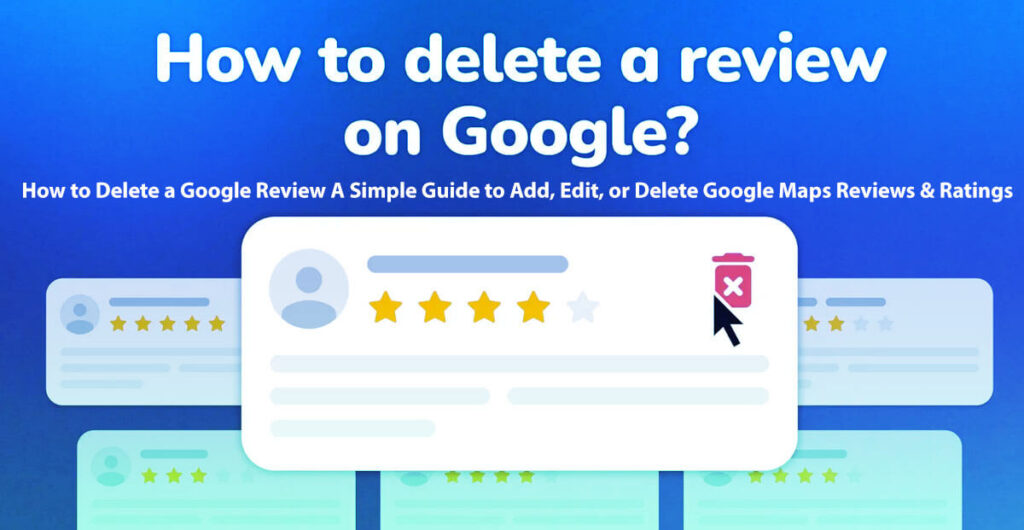
Sadly, not all competitors act honestly, and sometimes customers do too.
Reviews with false information, abusive language, or that break platform rules should not stay visible to the public.
Google usually responds to reports about reviews that clearly cross these lines.
So, take the initiative to flag these reviews. Provide a clear explanation of your concerns, and let Google decide whether to remove them.
Assessing the Review
Start by carefully checking if the review is credible. See if the reviewer’s name matches your list of past customers.
You can do this by reviewing the reviewer’s profile for any suspicious patterns, such as generic comments, repeated phrases, or a history that doesn’t match real customers.
Real reviewers usually mention details such as service dates, staff names, product information, order numbers, or specific locations.
In contrast, reviews that use vague or dramatic language without providing details may be a sign of fraud.
While waiting for Google’s response, draft a calm, professional reply to the review.
You can say you can’t find the customer in your records and invite them to contact you directly for help.
Helps protect your reputation while Google reviews the case and shows you are willing to solve problems.
Flagging the Review
Before you flag a review, read Google’s policies to identify the exact rule it violates.
Even customer reviews can be removed if they break these guidelines.
Examples of violations include personal complaints from former employees, hate speech, harassment, threats, or any obscene or profane language.
To flag a problematic review on your Google Business Profile, follow these steps:
Access your Business Profile on Google Search or Maps and select “Read reviews.”
Find the review you’re concerned about, then click the flag icon or the three-dot menu next to it.
Choose the reason for flagging, like Spam or Profanity, and submit your report.
Keep in mind that it may take several days for Google to decide whether to remove flagged reviews.
You’ll receive an email confirming your report and outlining the next steps.
Checking the Status of a Flagged Review
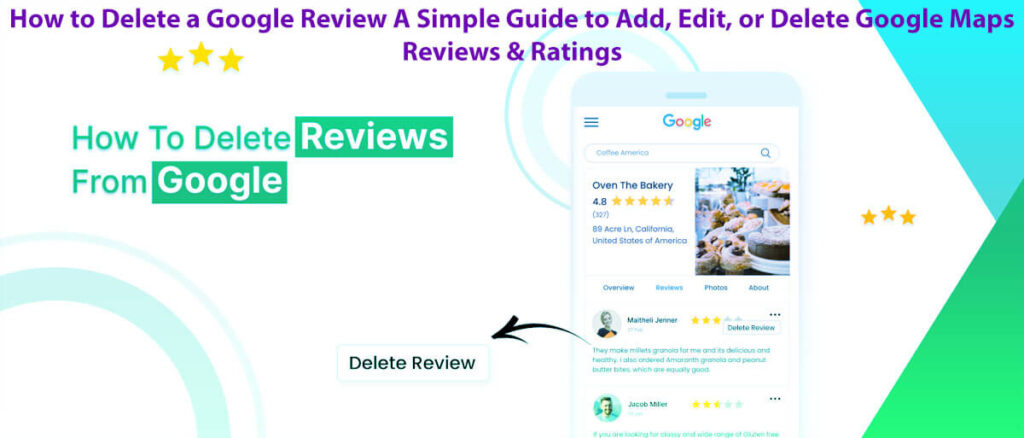
If you flag a review on Google, it won’t disappear right away.
Instead, Google puts the flagged review through a review process. You can keep track of its status in the reviews management section of your Business Profile.
As you check on your flagged reviews, you’ll see different status labels that show where each review is in the process:
Decision Pending: This means you’ve reported the review, but Google hasn’t finished looking into it yet.
During this time, be patient, as the review process can take different amounts of time.
No Policy Violation: If you see this status, Google has checked the review and found it doesn’t break any rules. The review will stay visible to everyone.
Escalated: This means your flagged review is getting a closer look from Google.
Watch your email for a message from Google with their final decision about the review.
Submitting an Appeal
If Google doesn’t remove a review you flagged, you can still appeal using the Reviews Management tool.
It is especially important if you’re dealing with a review attack, where you get several policy-violating reviews in a short time.
Experts often suggest grouping up to 10 reviews into one appeal to save time.
After you submit your appeal, Google will review it and email you its final decision.
Keep in mind that while you wait for a decision, flagged or appealed reviews will still show on your business profile.
Collect More Positive Reviews
A few negative reviews can make your profile seem more genuine, but it’s important to collect plenty of positive ratings to balance them out.
Asking for and gathering great customer feedback is a proven way to lessen the effect of occasional negative reviews on your overall rating.
Meet Your Customer’s Expectations
The key to getting five-star reviews is to meet, or even exceed, your customers’ expectations.
When customers are happy with your service, they’re more likely to leave positive reviews, which can help bring in new clients.
Make it as easy as possible for customers to leave feedback.
Share a direct review link, add a “Review us on Google” button to your website, include the link in your email footer, and put it on receipts or thank-you pages. These steps can help you get more reviews.
Request Customers to Leave a Review
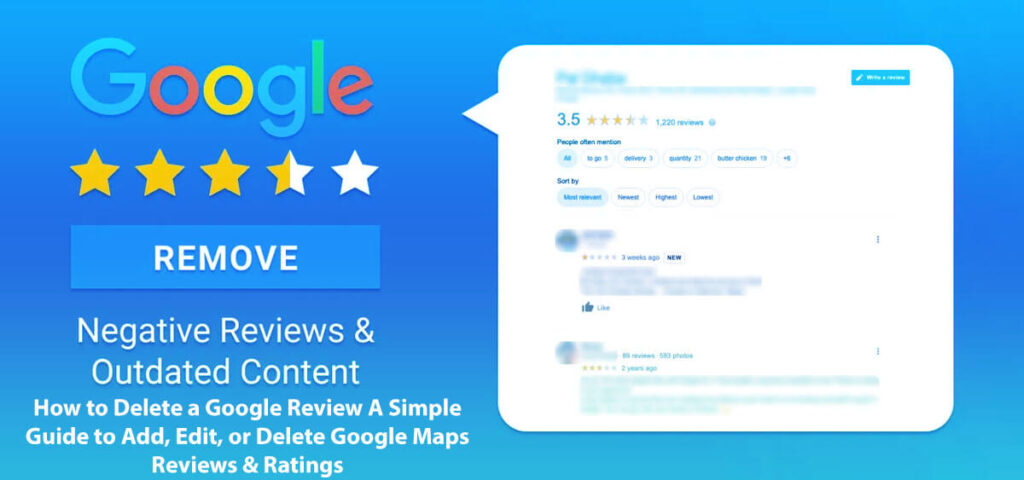
Be proactive and request customer reviews. The ideal time is immediately after completing a job, such as in follow-up emails or texts, or when sending invoices or receipts.
Even happy customers sometimes need a reminder, so ask for reviews politely.
Confirm Deletion
How to Confirm Deletion?
When you opt to delete a review, you will usually see a confirmation prompt on your screen. This prompt serves as a crucial safety measure to ensure you truly intend to remove your review.
It’s an opportunity to pause and reflect on your choice, as it’s important to remember that once you delete a review, this action cannot be reversed.
Take a moment to consider the implications of your decision:
Is this review still relevant?
Are you sure you want to continue?
After careful reflection, if you decide to continue with the deletion, follow the specific instructions outlined in the prompt.
May involve clicking a confirmation button or entering additional information to finalize the deletion.
Read any extra warnings or information, so you know what will happen after you delete the review.
Automate the Process
Automation simplifies the collection of reviews, enabling you to gather feedback with less manual effort.
The best automation method depends on your business type and how you communicate with customers.
For example, e-commerce businesses can send an automated email 7 to 14 days after delivery, asking customers to leave a rating.
If you run a local business like a salon, sending a text an hour after the appointment can encourage quick feedback.
For physical stores, adding QR codes at checkout or on receipts makes it easier for customers to find your review pages.
In mobile apps, you can use push notifications after important actions to remind users to leave reviews.
With a steady automation strategy, you can collect hundreds or even thousands of real reviews over time, helping reduce the impact of the occasional negative review on Google.
Check the Review Was Deleted
After deleting the review, take a moment to confirm it’s gone.
Go back to your reviews section. You should refresh the page to see the latest updates.
Once the page reloads, carefully scan through your list of contributions to confirm that the review in question no longer appears.
Pay close attention to ensure there are no lingering remnants of the review, as this step is essential in validating that your deletion has been carried out effectively.
If you still see the review, try deleting it again or check for any error messages that explain why it didn’t work.
Note: Google has recently stepped up efforts to curb fake engagement and misleading practices.
If a profile is found manipulating reviews, it may face penalties such as losing the ability to get reviews, having suspicious reviews removed, or receiving public warning labels.
This effort started in the UK and is spreading to other areas, so it’s important to handle customer feedback honestly and openly.
Important: Deleting a Google review is permanent. Once it’s gone, you can’t get it back.
Therefore, before proceeding with the deletion, take a moment to consider whether this is the best course of action for you.
If you have more questions or need help, feel free to ask. We’re here to help!
Think About Hiring an Online Reputation Management Company
If managing reviews feels overwhelming, you’re dealing with frequent review attacks, or you don’t have the time or know-how to handle these issues, it might be best to work with a trusted online reputation management (ORM) company.
Experienced ORM professionals know how to handle policy violations, group appeals when needed, work with third-party sites, and set up systems to help you get more reviews.
This way, you can focus on running your business while they monitor your reports and appeals, helping protect your online reputation.
How to Delete a Google Review: Frequently Asked Questions (FAQ)
Q1: How do I access the reviews I’ve written?
A1: Log in to your Google account, open Google Maps, and go to the menu. Click on ‘Your contributions’ to see all the reviews you’ve written.
Q2: Is it possible to delete a review on mobile?
A2: Yes, you can delete a review on your phone using the Google Maps app. Go to ‘Your contributions,’ find your review, and choose the delete option.
Q3: What if I want to edit my review instead of deleting it?
A3: To edit your review, follow the same steps to find it, then choose the edit option instead of delete.
Q4: If I delete a review, can I restore it later?
A4: No, once you delete a review, you can’t get it back. Be sure you want to remove it before you do.
Q5: Can businesses delete reviews left by customers?
A5: No, businesses can’t delete customer reviews. They can reply to reviews or report ones that break Google’s rules.
Q6: How can I report an inappropriate review?
A6: To report a review, click the three dots next to it and choose ‘Flag as inappropriate.’
Q7: What types of content are against Google’s review policy?
A7: Reviews with offensive language, spam, fake details, or personal attacks go against Google’s policy and can be flagged.
Q8: How long does it take for Google to take action on a flagged review?
A8: Google doesn’t have a set time to review flagged content, but you’ll get a notification if they take action.
Q9: Will deleting my review impact my visibility on Google?
A9: Deleting a review won’t affect your visibility on Google. It just removes that review from public view.
Q10: Can I delete a review if I wrote it on behalf of a business?
A10: If you wrote the review yourself, you can delete it. If it was posted from a business account, ask the account owner to remove it.
If you have more questions or need help, just let us know!
How to Delete a Google Review: This guide explains how you can remove a review you posted on Google, step by step.
Remove Google Maps Review: Follow these steps to delete a review you wrote on Google Maps and take charge of your online profile.
Step-by-Step Guide to Deleting My Google Review: This simple tutorial shows you exactly how to remove your own review from Google.
Flagging Inappropriate Google Reviews: Find out how to report reviews that break Google’s rules, so misleading or harmful comments can be handled.
Reporting Fake Google Reviews: This guide explains how to report reviews that seem fake or misleading, helping keep online reviews trustworthy.
Editing Your Google Maps Review: Learn how to update your review to better reflect your experience.
Business Owner’s Guide to Removing Google Reviews: This resource helps business owners address and, if necessary, remove unfair or false reviews about their business.
Google Review Removal Guide: This guide covers how to remove or manage your Google reviews.
Responding to Negative Google Reviews: Get tips and best practices for replying to negative feedback from customers on Google.
Online Reputation Management on Google: Learn how to monitor and improve your reputation using Google reviews and listings.
Appealing a Google Review Decision: Find out how to appeal if Google removes or censors your review.
Understanding Google Review Policy Violations: Learn what counts as breaking Google’s review rules and what can happen if you do.
Managing Google Business Reviews: Get tips for businesses on handling and replying to Google reviews to build a positive brand image.
Deleting a Review on the Google Maps App: Follow these steps to remove your review directly from the Google Maps application on your mobile device.
Customer Review Management Strategies: Learn the best ways to handle customer reviews across platforms, making the most of positive feedback and addressing negative comments constructively.
In Conclusion
Removing a Google review is straightforward. You can do it either via the Google Maps app on your phone or through the Google website on your computer.
Just tap on your profile picture or initials in the top-right corner of the app or website to open up the menu. From there, you can effortlessly find and access all of your contributions.
In your contributions, find the section called “Reviews.” You’ll see a list of all your submitted reviews. Scroll to find the one you want to delete.
Select the review, then choose the delete option to remove it from Google.
Remember, once you delete a review, you can’t get it back. Make sure you really want to remove it before you do.
If you need more help or have questions about your reviews, feel free to ask for assistance.
There are plenty of resources available to help you with any problems you might face.
AI Discovery Funnel: How AI-Driven Discovery and Guided Selling Visualization Work in 8 Easy Steps
The Ranking Factor Nobody Discusses: Hard Work in 8 Easy Steps: A Guide