




How to Create a Website in 9 Easy Steps: Follow These Steps, Choose the Perfect Domain, Get A Free Domain And Web Hosting, Get Your Free Domain, Install WordPress, Create And Design Your Website Using A Customizable Theme.
You can find out how to create a website in 9 steps, how to create a website for free, how to create a website for business, how to create a website using HTML, how to create a website using AI, how to create a website, how to create a website without coding, how to create a website with Hostinger, and much more available here.
This Online Web: Reader-supported, so that I may earn commissions from links on this page. Does not influence my reviews or opinions.
You can build a website in under 20 minutes, even if you’re new to this. Modern hosting services and graphic editors make the setup quick and easy.
Don’t worry if terms like ‘domain’ or ‘hosting’ are unfamiliar; this guide will explain everything in simple language to help you get started with confidence.
You don’t need a designer or developer to launch your site, whether it’s for a business, personal blog, portfolio, or online store.
By following the instructions below, your website will be live and ready to grow quickly.
If your goal is to expand your audience, build a brand, or earn money online, there may be a bit more work involved, but don’t worry.
The guide below outlines practical solutions for security, speed, and SEO, and Hostinger provides the tools and support you need to implement these key features.
How To Create A Website In 9 Easy Steps
Here is a broad overview of what’s to come. You can use these links to create your website from scratch or jump directly to the section you need.
- Choose the perfect domain.
- Register with Hostinger to get a free domain and web hosting
- Hostinger is recommended for its affordability, beginner-friendliness, and excellent support, making your website setup smoother and more accessible
- Get your free domain now with Hostinger
- Install WordPress using Hostinger
- Create and design your website using a customizable theme
- Design and build your website’s structure
- Use menus to connect your web pages
- Launch essentials: speed, SSL, and basic SEO
Step 1: Choose The Perfect Domain
One of the most important decisions you will make is choosing your domain name.
It helps visitors feel confident in your brand, makes your website memorable, and boosts their motivation to engage with your content.
Although many popular domain names are already in use, a creative approach can help you find unique and recognizable options.
Here are some tips to consider when brainstorming domain ideas:
Keep it simple: Select a name that’s easy to spell and pronounce. It will make it easier for people to remember and share your domain.
Keep it short: Aim for a domain name of no more than 14 characters to make it easier to remember and type.
Prefer familiar extensions: While .com remains the most popular, .org and .net are also reliable options. When they fit your brand, niche TLDs (such as .store, .tech, and .io) can work well, too.
Use your name for personal branding: This is great for influencers, blogs, and portfolios.
Avoid hyphens and numbers: These can make your domain look messy and harder to share.
Additionally, check that you are not infringing on any trademarks and that the corresponding social media handles are available.
Consistency between your domain and social media profiles makes building a brand easier.
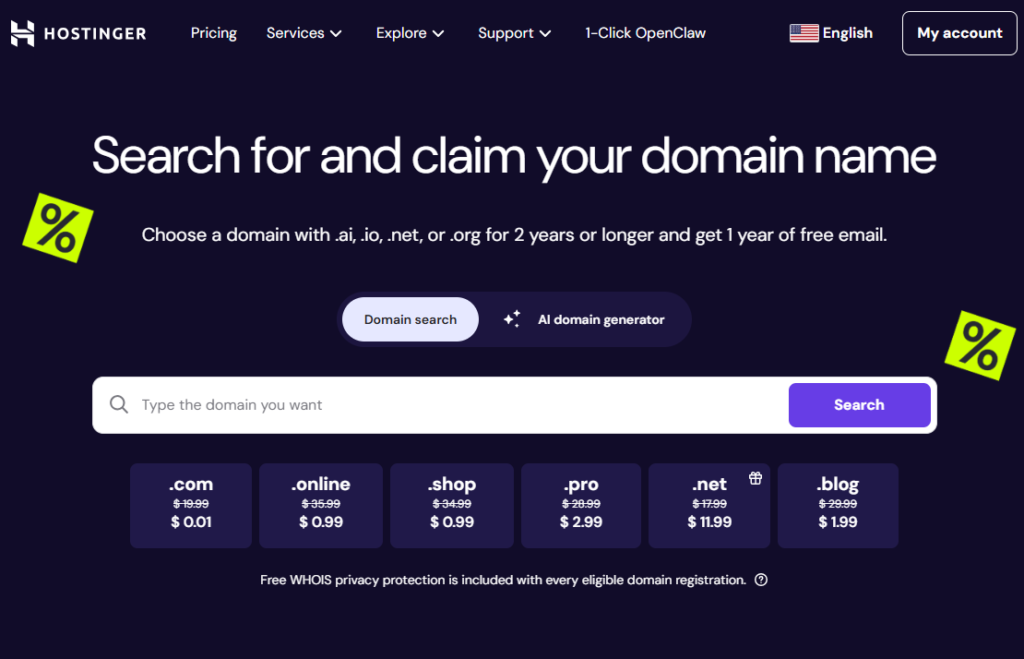
Always have a few backup options in case your first choice is unavailable. Hostinger’s free domain search tool makes this quick and easy, helping you feel confident about your choices.
To check if your desired domain is available, enter it into the search bar on Hostinger’s domain name search page.
Suppose it’s available, great! If not, Hostinger will suggest similar names. Be prepared to modify your idea or try different approaches; this is quite common.
Instead of trying to purchase an already owned domain—which can cost thousands or even six figures—I recommend sticking with available options.
Pro tip: Wait to add the domain to your cart. By signing up for Hostinger’s Premium plan (or a higher tier) with an annual or longer-term agreement, you’ll receive your domain for free.
Now, let’s move on to the next step.
Step 2: Register With Hostinger To Get A Free Domain And Web Hosting
To launch your website, you need a domain name and web hosting.
The following step is to choose a dependable web host that can store and serve your website files to visitors.
Hostinger comes highly recommended for this purpose. It offers affordable pricing, fast service, and is easy for beginners.
Moreover, when you sign up for at least 12 months, you get a free domain name with applicable TLDs.
To register with Hostinger at their introductory discount, click my link.
You now have everything you need to start your website and create your online presence.
Visit Hostinger’s Homepage: After clicking the link, select “Web Hosting” from the Hosting menu.
Choose Your Plan: You’ll find options for the Premium, Business, and Cloud Startup plans, geared toward beginners.
The pricing table displays details for each plan, including name, rates, and features. To proceed, select your Hostinger plan.
The Premium plan is ideal for new users, as it includes features such as a free SSL certificate, email, and ample storage.
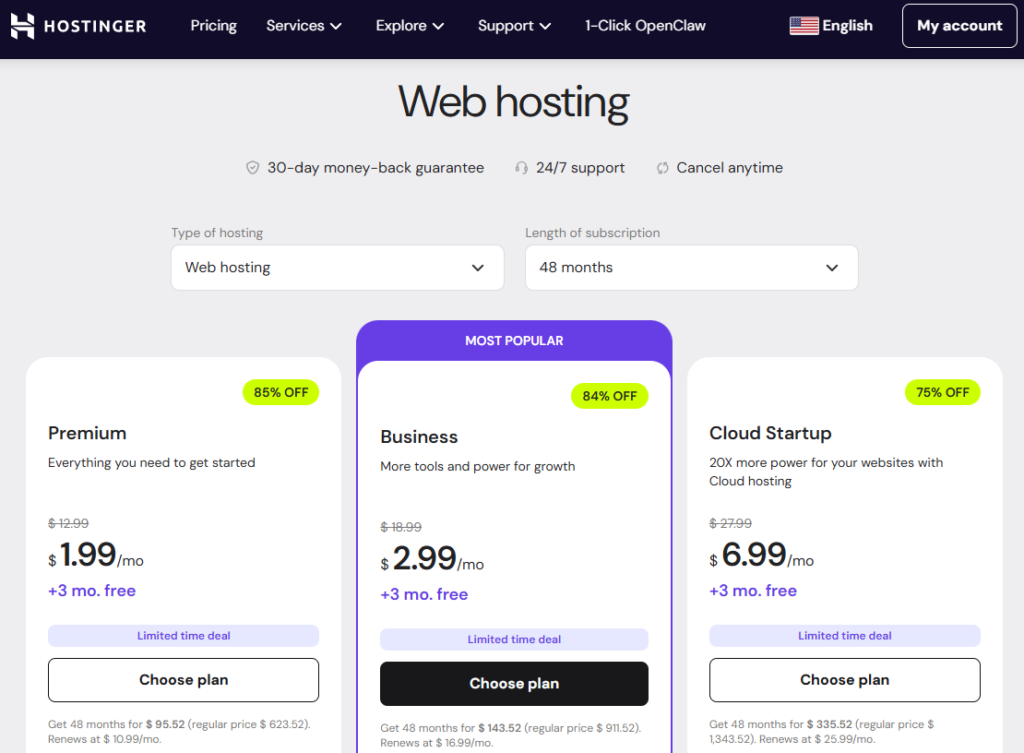
If you plan to run an online store or expect increased traffic, consider the Business or Cloud Startup plans for additional CPU/RAM, staging tools, and daily backups.
As your website expands, you can easily upgrade or downgrade your hosting plan later. Starting with the Premium plan keeps costs straightforward while providing flexibility as your needs evolve.
Great Deals: This is among the best deals available. Hostinger provides essential features, such as website builders and SSL certificates, at no cost, unlike many hosts that charge extra for these.
Complete Registration and Payment: Here’s what to expect:
Create a Hostinger account using an email address you check frequently, as they will send important notifications and account information.
Enter your payment details. Hostinger supports popular digital wallets and major credit cards.
Click “Submit.” Remember, your plan comes with a 30-day money-back guarantee.
After completing your purchase and verifying your email, you can start building your website immediately.
Although other hosts offer similar packages, Hostinger consistently outperforms them across performance, usability, and overall value. You can check my full Hostinger review for more details.
If you need fully managed WordPress hosting, WP Engine is a great option for developers and businesses that prioritize performance.
They handle technical aspects, including security updates and speed optimizations.
Step3: Get Your Free Domain Now With Hostinger
If you’re new to domains, Hostinger’s hosting plans include a free domain for the first year, which is valuable for beginners.
When you sign up for a Premium or higher hosting plan with a minimum 12-month commitment, you typically receive a domain name for free for the first year (on qualifying TLDs).
Ensure that your hosting plan includes the free domain in your cart.
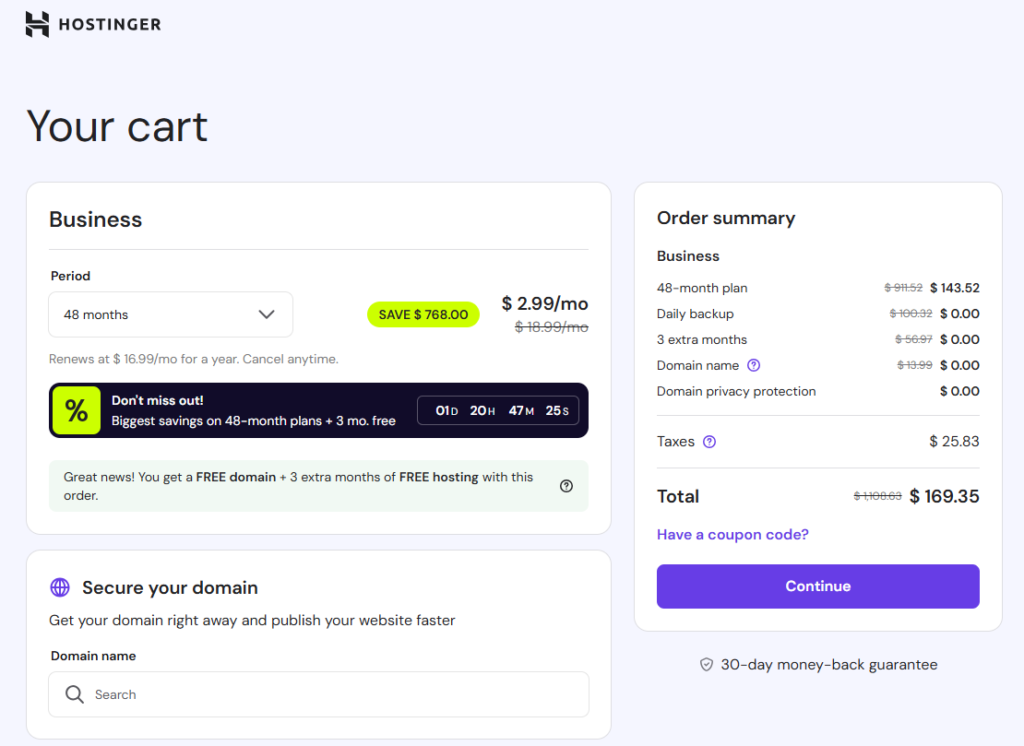
Remember that the domain will automatically renew at the standard rate after one year, not at the introductory rate. Enable free WHOIS privacy whenever possible to safeguard your personal information.
If you have an existing domain, now is a great time to replace or modify it. You can change your domain name if the setup is complete.
Step 4: Install WordPress Using Hostinger
Install WordPress Using Hostinger: Selecting a content management system (CMS) is essential.
I recommend WordPress for most websites because it’s free, adaptable, and user-friendly.
Installing WordPress via Hostinger is straightforward. After logging into your Hostinger dashboard, click on “Manage” on your new site and select “Websites” at the top, then choose “WordPress” from the Auto Installer menu.
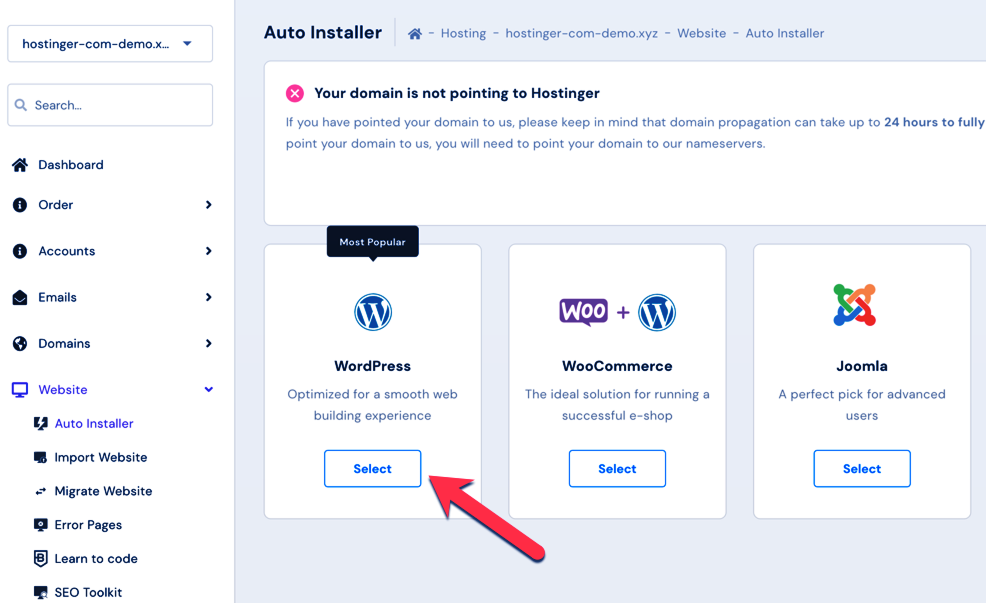
Follow the on-screen setup instructions. You’ll need to create a new WordPress username and password and provide your website’s name (these will be different from your Hostinger login details).
After installation, you’ll select a theme, which dictates your website’s appearance. Don’t overthink this step—theme changed later, so choose a simple design for now to move forward.
After verifying all your information, WordPress can be installed in under 5 minutes. Congratulations—you now own a piece of the internet!
Step5: Create And Design Your Website Using A Customizable Theme
If you like the theme you selected during installation, you can keep it.
However, WordPress offers thousands of free and premium themes, including modern block themes you can visually modify in the Site Editor.
Helpful tip: Don’t get bogged down trying to find the ideal theme. Pick one that aligns with your website’s goal and looks clean. You can always modify it later without losing your content.
To change your theme, go to your WordPress dashboard via Hostinger or visit yourdomain.com/wp-admin and log in with your credentials. Then, navigate to Appearance > Themes> Add New to proceed.
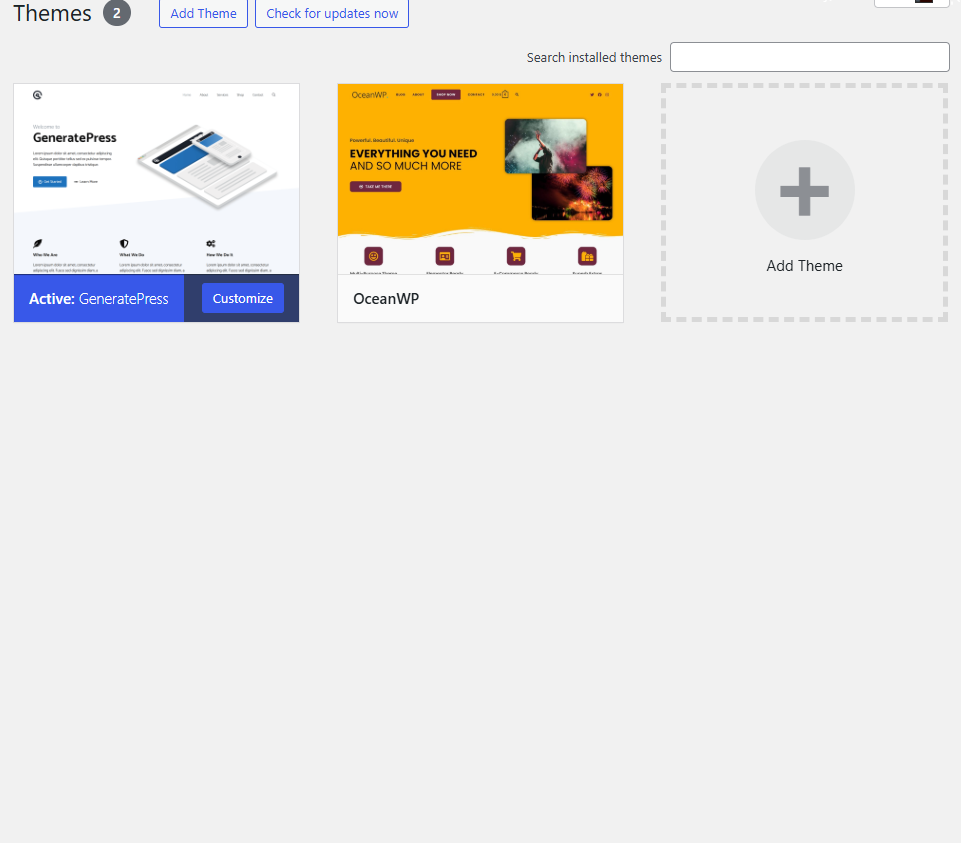
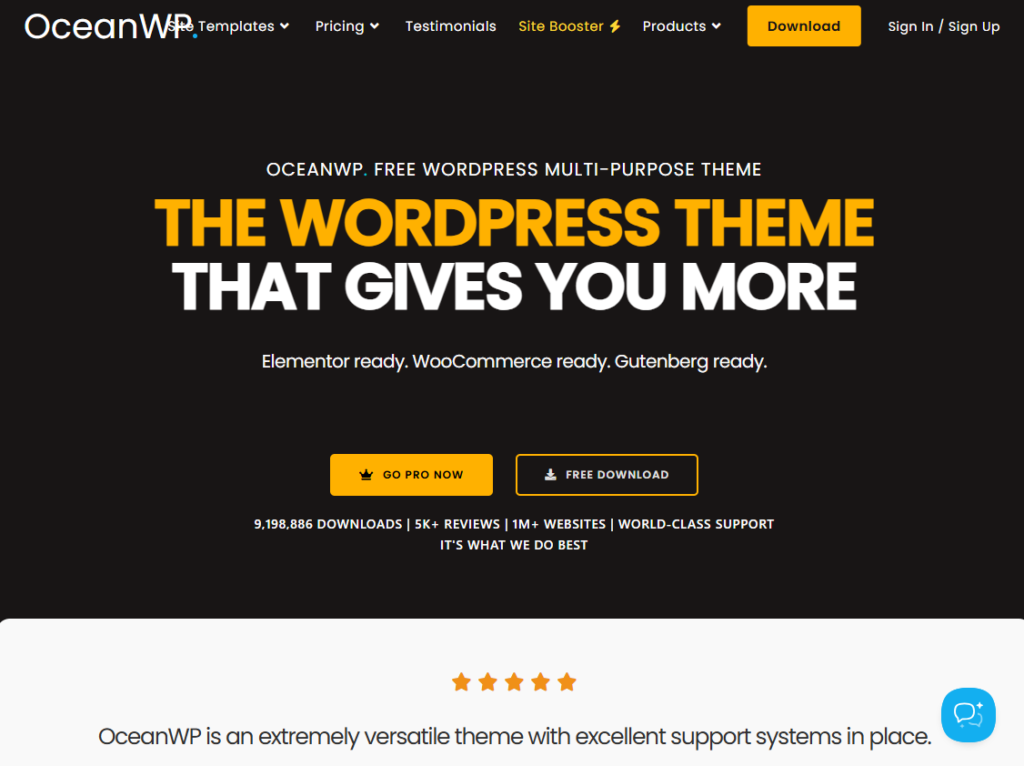
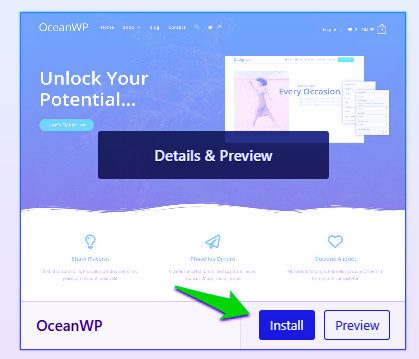
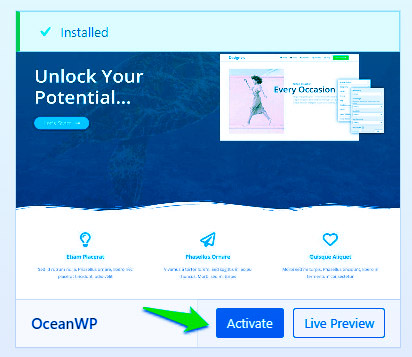
To begin, search for “OceanWP” in the search bar, then click Install. Once the installation is complete, click Activate to add the theme to your website.
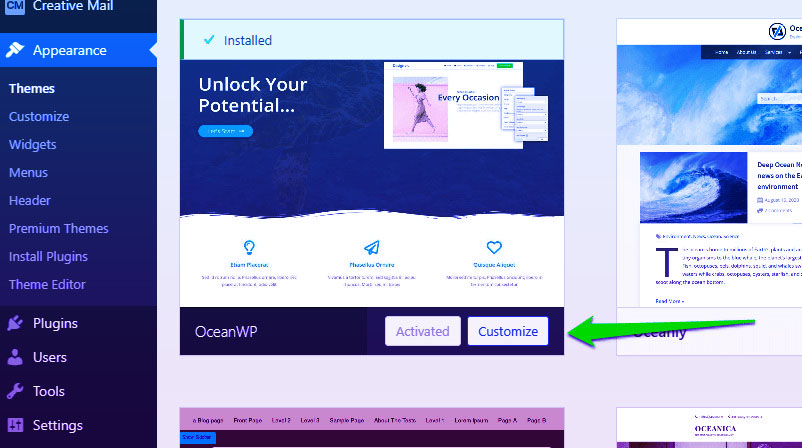
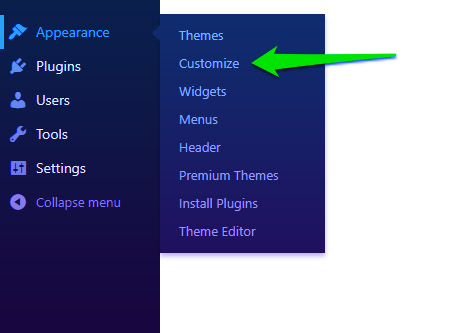
After activation, you can customize your theme by selecting Appearance > Editor for block themes or clicking the Customize button for classic themes.
It’s essential to know whether your theme is a block or classic theme, as this determines where and how you can customize your site.
The customization tool will open a live preview window, allowing you to modify your layout, colors, menus, logos, and fonts.
While each theme has its own settings, the following areas are the most popular for modification:
Site Identity: Crucial. Set a name, slogan, and favicon for your website.
Navigation and Menus: Very important. Clear navigation helps visitors easily find what they need, empowering them and boosting their confidence in your site.
Patterns and Widgets: Optional. You can add drag-and-drop patterns (for block themes) or sidebar widgets (for classic themes).
Typography: Crucial. Adjust the fonts used for body text, headers, and other areas.
Header and Footer: Important. Customize key branding elements and upload your logo.
Homepage Settings: Vital. Tailoring your homepage lets you highlight your unique brand, inspire users, and instill pride in your website’s appearance.
Extra CSS: Optional/Advanced. If needed, you can use custom code to personalize your website further.
Explore and modify your theme until it feels uniquely yours. Remember to click Publish (or Save in the Site Editor) to secure your edits.
Your website may currently appear blank, but we will be adding pages and content to complete it.
If the screen remains blank after these steps, ensure your homepage is properly configured and that your pages are published and added to your menus.
By troubleshooting these areas, you can ensure that your site displays correctly.
Step 6: Design And Build Your Website’s Structure
Think of your website as a home. You now have the framework (the theme) and the foundation (domain and hosting), but you still need to create rooms, which translate to pages on your website.
Visitors will read about your brand, contact you, browse your products, or consume your content on these pages.
The navigation and structure of your site rely on these pages.
Most websites should include at least the following pages:
Homepage: The entrance to your website, showcasing what you offer and guiding visitors to the content they seek.
Contact: Provides visitors with a way to communicate with you, vital for customer connections and establishing credibility.
About: Provides visitors with insight into your background, mission, story, or team to drive engagement.
Store: Displays and sells your goods and services (optional for e-commerce websites).
Blog: A collection of news, articles, guides, or other information that helps increase your authority and website traffic.
How to Create a Home Page And Design
With OceanWP (and most older themes), you can choose between two types of homepages:
Recent Posts: Your latest blog entries automatically appear on the homepage.
Static Page: A custom page you create to be your homepage, giving you complete control over its content and design.
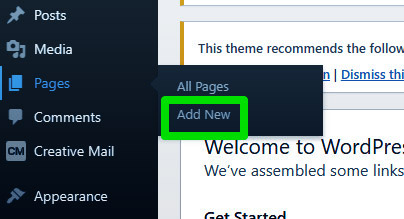
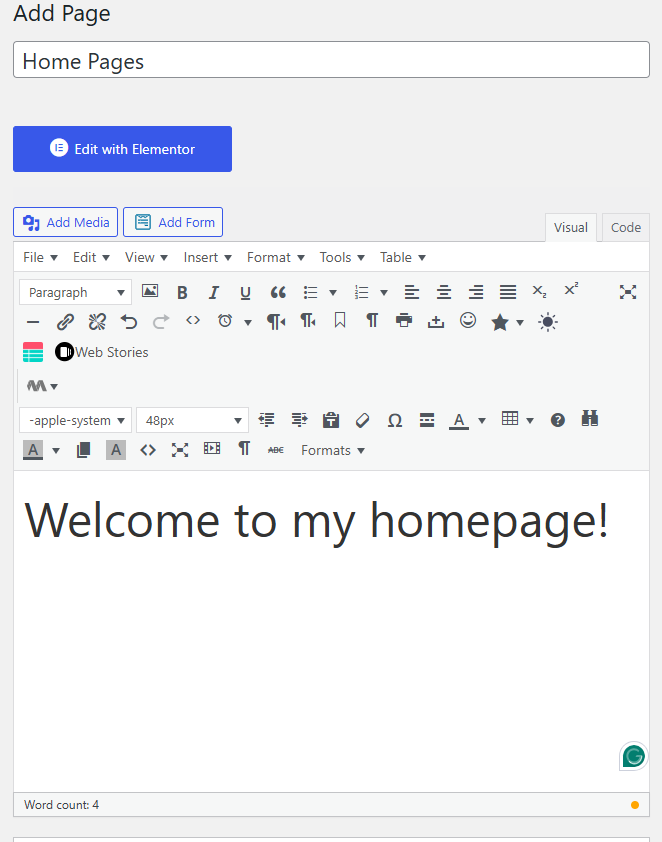
For enhanced customization, use a static page. To make a new page, go to Pages > Add New in your WordPress dashboard.
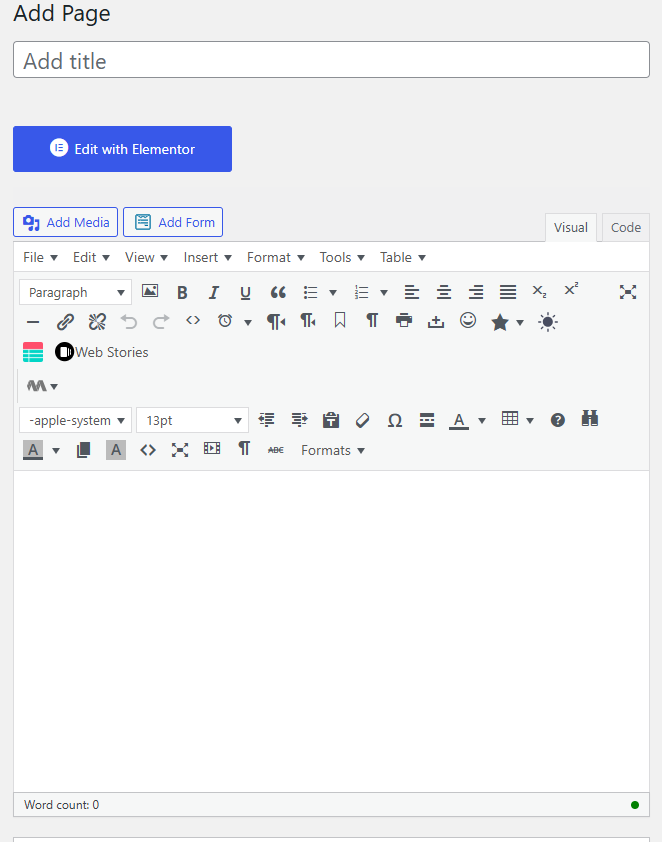
The page editor opens, allowing you to add a title and content to your homepage, including text, photos, videos, buttons, and more.
To create a visually appealing layout, click the + symbol to add content blocks like lists, quotes, images, or headlines.
When you’re ready, preview your page, save drafts, and publish it using the toolbar in the upper right corner. Your options include:
Save Draft: Preserve your writing without publishing it.
Preview: View the page as it appears in real time.
Publish: Make the page publicly accessible.
Settings (gear icon): Modify the featured image, URL, visibility, scheduling, and more.
Three Dots for Options: Access advanced editing settings.
You can create a basic homepage, even if it consists only of a title and placeholder text. You can always enhance it later.
Click Publish, and then set it as your homepage. For classic themes, choose A static page under Appearance > Customize > Homepage Settings.
For block themes, navigate to Settings > Reading to set your homepage (or configure it within the Site Editor).
To finalize your changes, click Publish (or Save). Your homepage is now customized!
Methods for Developing New Landing Pages
How to Create New Landing Pages
Creating new landing pages follows the same procedure as making your homepage.
To begin, repeat the steps outlined above. Go to Pages> Adding a New Page to Your Sample WordPress Site.
To help you get started, consider these page ideas:
- About Us
- Contact Us
- Products and Services
- FAQs
- Blog
- Customer Reviews
- Downloads or Resources
- Careers
You don’t need to create every page right away. Start with a few essential ones and gradually expand.
Step 7: Use Menus to Connect Your Web Pages
Navigation menus help visitors browse your website more easily. If you encounter issues such as missing menu locations or nesting errors, check your theme settings or menu structure.
After resolving these issues, creating menus with OceanWP or most WordPress themes becomes straightforward.
Are you using a traditional theme? Navigate to Appearance > Customize in your WordPress dashboard. If you’re using a block theme, select Appearance > Editor to modify your Navigation block.
Click on Menus > Create New Menu in the Customizer.
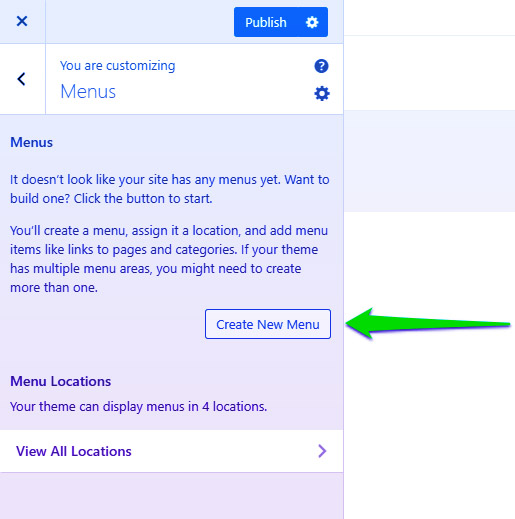
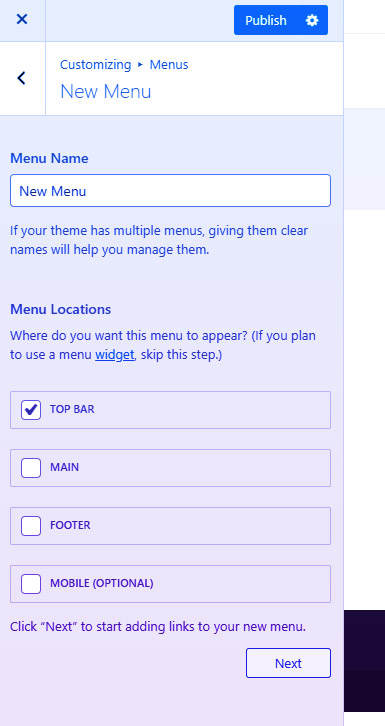
In your WordPress example, create a new menu. Select a location for your menu, such as the Top Bar, and give it a name, such as “Main Menu.” You can always change this later. Click Next.
It’s time to start adding items to your menu. Click + Add Items.
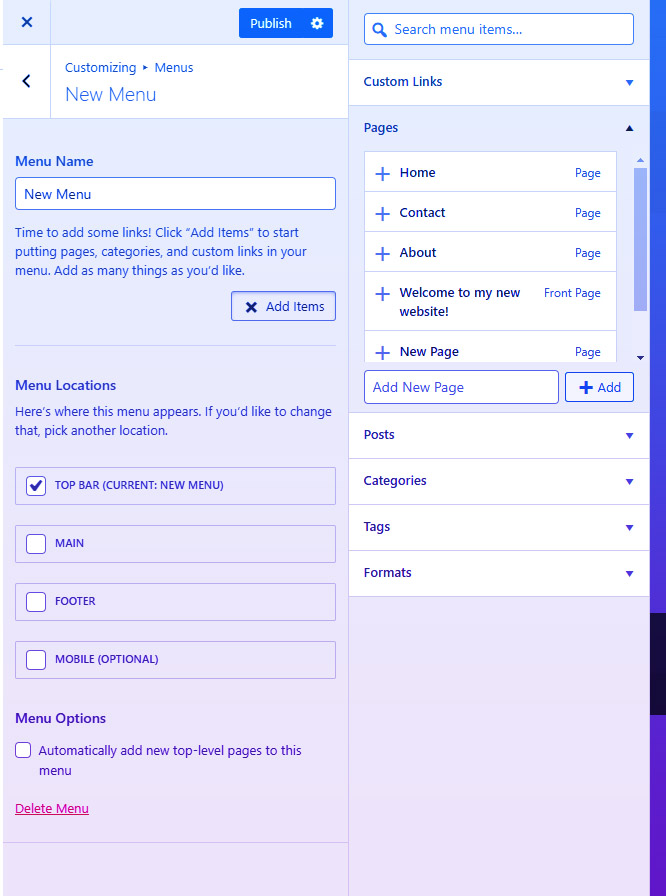
You can add pages (such as Home, About, and Contact), blog posts, custom links, categories, and more.
Begin by adding your most important pages, usually Contact, About, and Home.
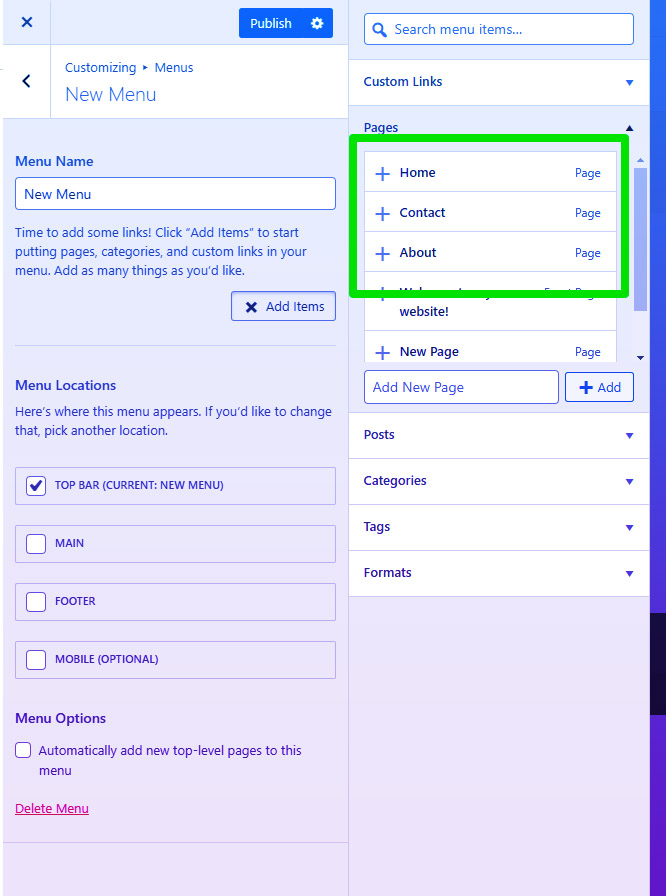
To include a page in your menu, choose it from the Pages section. It will then be visible in your site’s main navigation menu.
Additionally, you can create dropdown menus by nesting items under parent menu items.
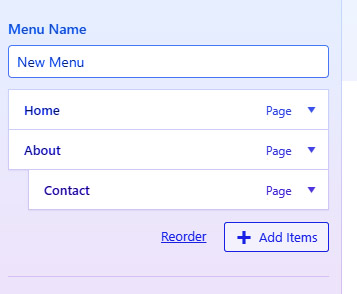
For example, slide your Contact page slightly to the right under About if you want it to appear in that section.
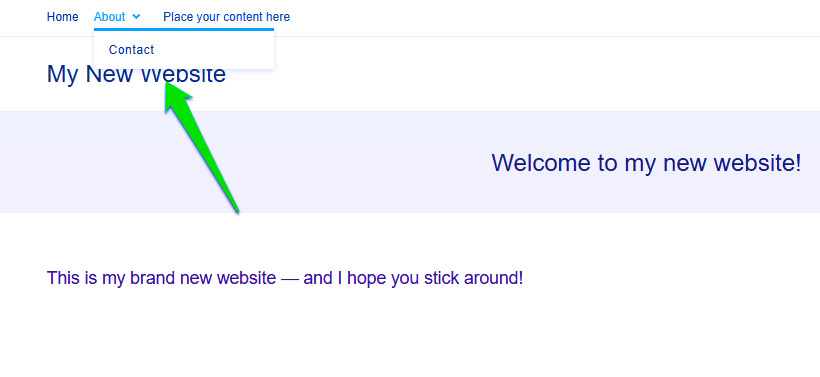
After you’ve finished adding and arranging your menu items, click Publish. If you’re using the Site Editor, click Save.
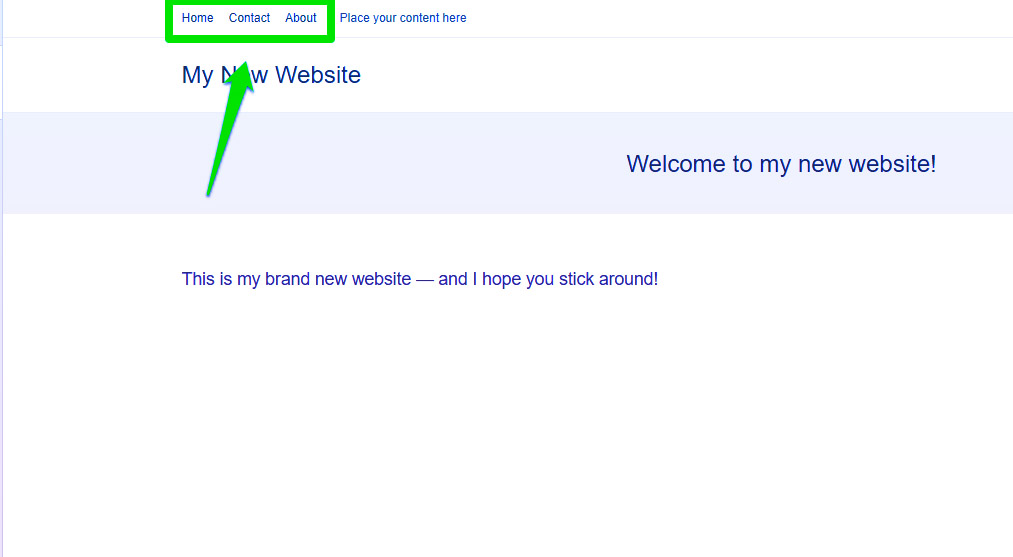
That’s it! Your web pages are now linked, and you have a functional menu.
To view it in real time, visit your website.
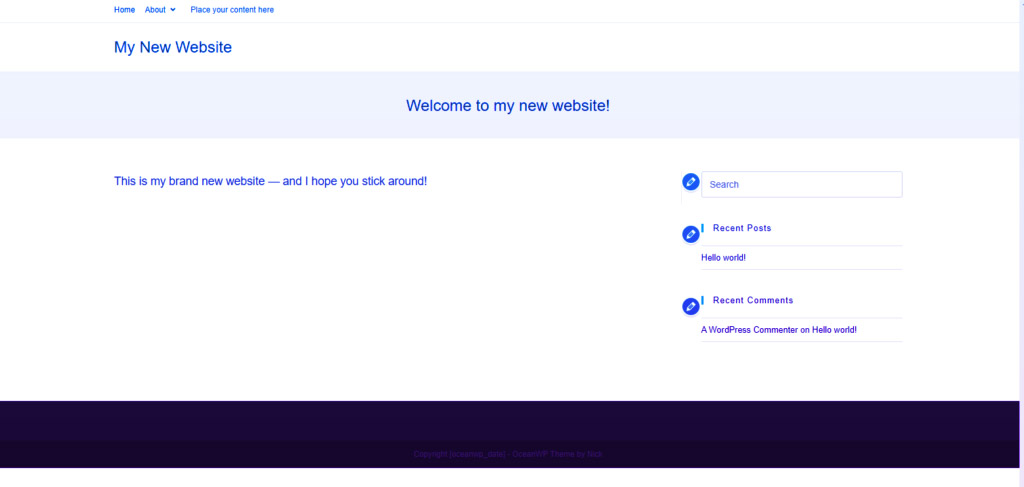
Although it may still look somewhat unfinished, it is now ready for your unique branding and content.
The toughest part is over—it’s time to transform your empty website into something genuinely useful.
Step 8: Focus on the Basics: Foundational SSL, SEO, and Speed Optimization
Before you share your website, make sure you address these quick wins.
They’ll help your site perform better, get found more easily, and build trust from the start.
Enable SSL (HTTPS): Activate the free SSL certificate in Hostinger to ensure your website loads securely. Many features, such as payment gateways, require HTTPS, and browsers warn users about sites without it.
Create Clean URLs: In WordPress, go to Settings > Permalinks and choose “Post name” to make your links easier to read.
Add Basic SEO: Install a reliable SEO plugin to generate an XML sitemap and configure title and meta description tags. Write helpful, user-focused content and use clear headings. To help people find your site faster, submit your sitemap to Google Search Console.
Connect Analytics: Add website analytics to track your visitors and identify areas for improvement. Set up Google Analytics 4 and verify your site in Google Search Console.
Enhance Speed: Use a lightweight performance plugin or enable caching with your hosting provider. Compress large images to WebP or AVIF before uploading. You can also enable a CDN for visitors from different countries.
Backups and Updates: Enable automatic backups to maintain site security and stability. Consistently update WordPress, themes, and plugins. If available, utilize a staging site for significant modifications.
Security fundamentals include using strong passwords for admin users, enabling two-factor authentication, and correctly setting user roles and permissions. Further secure your site by removing unused plugins or themes and restricting admin access.
Legal Basics: If you display ads or collect user data, include Privacy Policy and Terms of Service pages.
If you use cookies for analytics or advertising, include a cookie notice where necessary.
Congratulations! You’ve successfully built your first website! What’s Next?
You’ve successfully launched your first webpage, which is a big step. Now that I’m marking a significant achievement.
With your WordPress and Hostinger site live, you can now personalize the site, add content, and look into ways to make money.
Try to explore monetization opportunities. Consider implementing structured data by using your SEO plugin, linking related pages, creating internal links between relevant pages, and enabling two-factor authentication for administrative access.
Step 9: Key Strategies For Success: Sustaining And Expanding Your Online Presence
Today, a strong online presence is essential for everyone, from individuals to businesses.
If you’re a freelancer, content creator, or small business owner, managing your website well can make a big difference in your success.
Here are some strategies to help you improve your website’s performance.
Consistent Content Updates
To show up in search results and attract your audience, your content needs to stay current and relevant.
Use a blog tailored to your audience’s interests to share news, advice, and industry insights.
Regularly update your product pages and service descriptions to improve your website’s relevance and boost your SEO rankings.
Search Engine Optimization (SEO)
Keep working on your SEO strategy to stay visible and easy to find online.
Begin with keyword research to identify the words your audience uses. Add these keywords to your image alt text, meta descriptions, and website content.
Regularly review your SEO plan and update it as new trends and search engine updates emerge.
Utilize Social Media
Engaging with your followers across platforms demonstrates that you value their feedback. Fosters loyalty and cultivates a sense of community.
Boost your website’s visibility by sharing it regularly on social media platforms like Twitter, Facebook, Instagram, and LinkedIn. Keep audience engagement by posting consistently and responding promptly to messages and comments.
Start conversations to build a loyal community around your brand and sustain the dialogue.
Create an Email List
Email marketing is an effective way to engage your audience. Create an email list to keep subscribers informed about new products, services, or updates.
Offer incentives such as discounts, eBooks, or special content to encourage sign-ups. Personalize your emails to keep your audience interested.
Monitor Website Performance
Use tools such as Google Analytics to monitor your website’s performance. Review user behavior, traffic sources, and bounce rates to help you make better decisions and improve your site.
Ensure Mobile Compatibility
Ensure your website functions effectively on mobile devices, as this improves user experience and increases visibility in Google search results.
Encourage a Community
To build trust, share user-generated content, such as reviews and testimonials. Add comment sections or forums to encourage people to talk and share their experiences.
Creating a community around your business fosters repeat business and enhances customer loyalty.
Invest in Paid Advertising
Consider allocating a budget for paid advertising alongside organic growth strategies to reach a larger audience.
Begin with a small budget, test various ads, and assess results to identify the most effective strategy.
Monitor Your Competitors Closely
Keep an eye on your competitors to learn about effective strategies in your market.
Analyze their SEO tactics, social media presence, and content to identify weaknesses in your own strategy and differentiate your business.
Stay Updated with Market Trends
Web development and digital marketing change quickly. Stay competitive by keeping up with news, new tools, and best practices.
Participate in online courses, attend webinars, and read industry blogs to maintain your skills.
Conclusion
Growing your website requires dedication and a solid plan. Maintain fresh content, optimize your SEO, stay engaged on social media, and regularly review your performance.
Adapt your tactics to meet changing audience needs and market trends. With sustained effort and innovation, your online presence can thrive over the long term.
How To Start A Business In 25 Easy Steps: Follow These Steps
BrandCrowd Review: Pros and Cons, Price & Features
Top 5 Best E-commerce Platforms: Compare And Ranking
Hunter.io Review: Pros and Cons, How It Can Save Hours
Top 15 Best Online Reputation Management Companies